If you’re interested in using the blazing-fast TypeScript-Go (tsgo) project as your TypeScript/JavaScript LSP inside Neovim, here’s a full guide to get you up and running.
This guide assumes you’re using Neovim 0.11+ which supports the new lsp/ folder structure for lightweight LSP configuration.
Step 1: Clone the TypeScript-Go Repository
First, clone the typescript-go repository recursively (with all its submodules):
git clone --recurse-submodules https://github.com/microsoft/typescript-go.gitStep 2: Build TypeScript-Go
Navigate into the project directory and build the project:
hereby install-tools && hereby buildThis installs necessary dependencies and builds the tsgo binary you’ll later point to in Neovim.
Step 3: Create a Neovim LSP Configuration for tsgo
Next, create a new configuration file for tsgo under your Neovim config directory, using the new LSP structure:
~/.config/nvim/lsp/tsgo.lua(Adjust the path based on your Neovim setup.)
Step 4: Add the tsgo LSP Setup Code
Paste the following Lua code into your lsp/tsgo.lua file:
--- https://gist.github.com/kr-alt/24aaf4bad50d603c3c6a270502e57209
local root_files = {
  "tsconfig.base.json",
  "tsconfig.json",
  "jsconfig.json",
  "package.json",
  ".git"
}
local paths = vim.fs.find(root_files, { stop = vim.env.HOME })
local root_dir = vim.fs.dirname(paths[1])

-- root directory was not found
if root_dir == nil then
  return
end

---@type vim.lsp.Config
local M = {}

M.cmd = {
  vim.env.HOME .. "/Code/typescript-go/built/local/tsgo",
  "lsp",
  "--stdio"
}

M.filetypes = {
  "javascript",
  "javascriptreact",
  "typescript",
  "typescriptreact"
}

M.root_dir = root_dir

return M
Step 5: Enable the tsgo LSP in Your Neovim Config
Wherever you load or configure your LSP servers (for example inside the nvim-lspconfig setup), you can now enable the tsgo LSP:
vim.lsp.enable({
 "tsgo",
 -- other language servers
})
Or, if you’re using a plugin like neovim/nvim-lspconfig, you might hook it into your existing LSP setup logic.
Wrapping Up
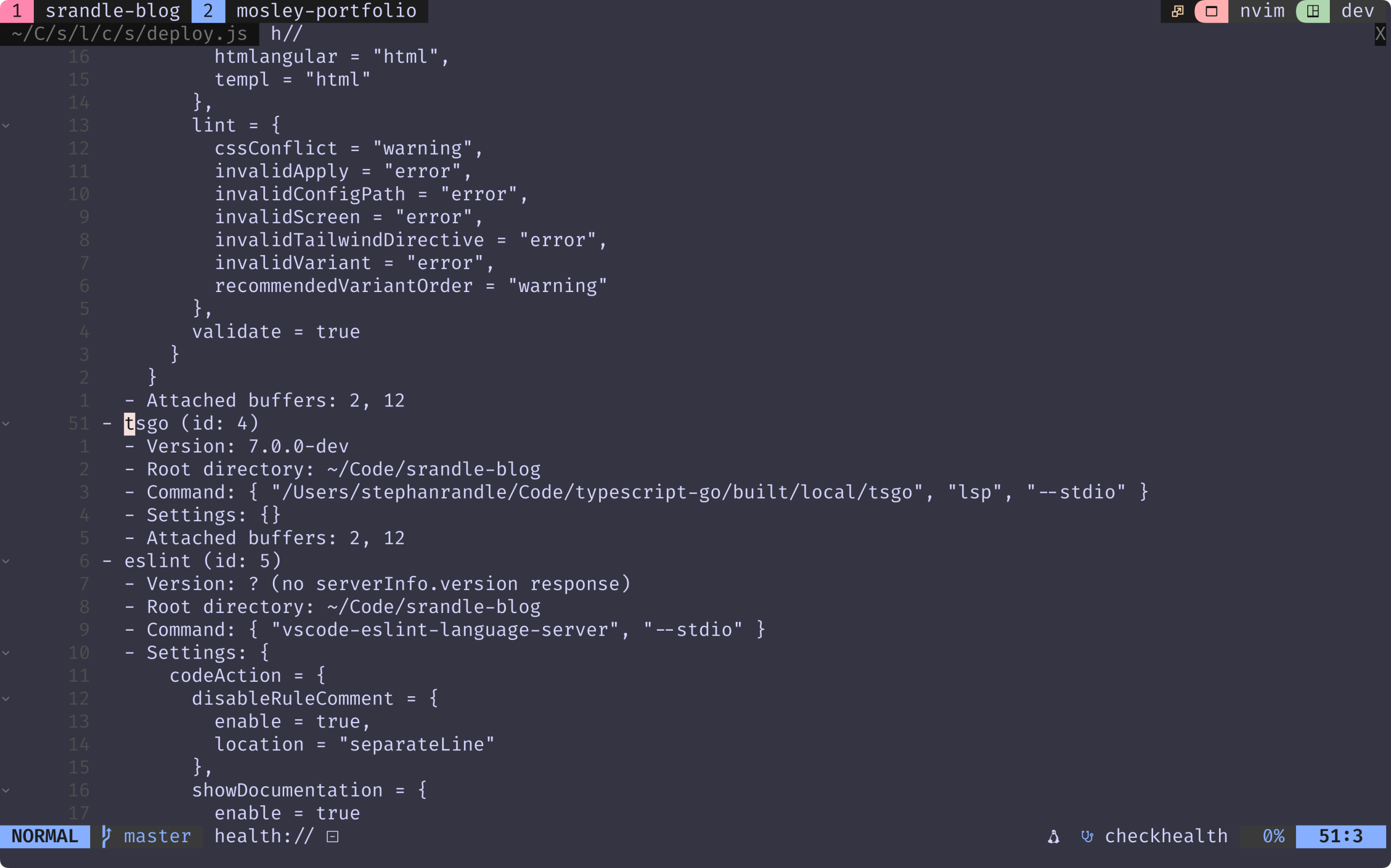
You should now have TypeScript-Go running inside Neovim, providing fast and efficient TypeScript and JavaScript language features!
References
- https://github.com/microsoft/typescript-go/discussions/461
- https://gist.github.com/kr-alt/24aaf4bad50d603c3c6a270502e57209