NOTE
while this method still works, for node version management I prefer fnm
If you’re working across multiple Node.js projects, it’s common to require different Node versions depending on the project. Constantly running nvm use manually can get tedious.
Here’s a simple guide on how to automatically switch Node versions based on the .nvmrc file in your project directory.
Step 1: Ensure You Are Using nvm
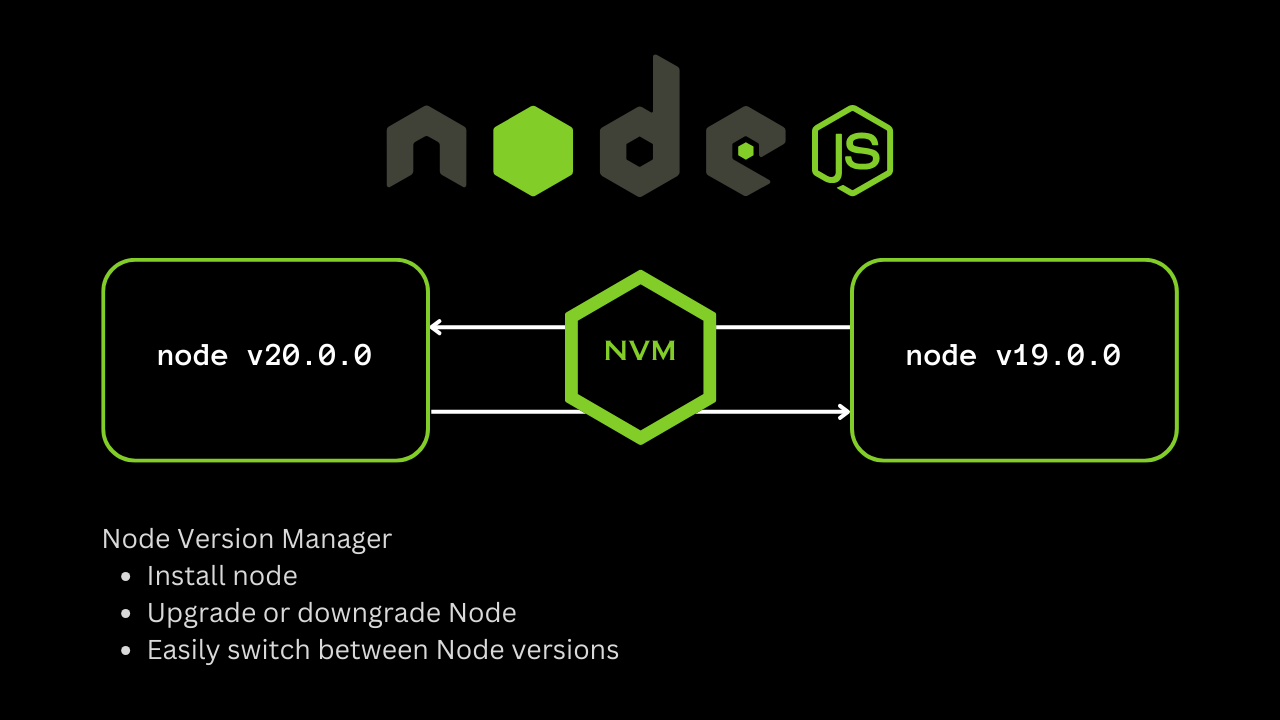
First, make sure you have nvm (Node Version Manager) installed.
It allows you to easily install and switch between Node.js versions.
To check if you have nvm installed, run:
nvm --versionIf it’s not installed, you can install it with:
curl -o- https://raw.githubusercontent.com/nvm-sh/nvm/v0.39.7/install.sh | bashRemember to reload your shell after installing nvm.
Step 2: Create a Zsh Script to Auto-Switch Node Versions
To automatically detect and switch Node versions whenever you cd into a new project, add the following Zsh script:
#!/bin/zsh

# https://stackoverflow.com/questions/23556330/run-nvm-use-automatically-every-time-theres-a-nvmrc-file-on-the-directory
autoload -U add-zsh-hook
load-nvmrc() {
  local node_version="$(nvm version)"
  local nvmrc_path="$(nvm_find_nvmrc)"

  if [ -n "$nvmrc_path" ]; then
    local nvmrc_node_version=$(nvm version "$(cat "${nvmrc_path}")")

    if [ "$nvmrc_node_version" = "N/A" ]; then
      nvm install
    elif [ "$nvmrc_node_version" != "$node_version" ]; then
      nvm use
    fi
  elif [ "$node_version" != "$(nvm version default)" ]; then
    echo "Reverting to nvm default version"
    nvm use default
  fi
}
add-zsh-hook chpwd load-nvmrc
load-nvmrc
How This Works
- When you change directories (
chpwdhook), the script checks if there’s a.nvmrcfile. - If
.nvmrcexists and specifies a Node version different from the currently active one:- It automatically switches to the correct version.
- If the version isn’t installed yet, it installs it on the fly.
- If there’s no
.nvmrcin the current project, it reverts to your default Node version.
Step 3: Source the Script in Your .zshrc
To make this behavior permanent, source the script in your .zshrc file.
If you placed the script inline, simply add it directly to .zshrc.
Otherwise, if you saved it as a separate file (say, ~/.nvm-auto.sh), add this line to your .zshrc:
source ~/.nvm-auto.shThen, reload your shell:
source ~/.zshrcNow, your Node version will automatically adjust based on each project’s .nvmrc whenever you cd into the directory! 🚀
Final Thoughts
With this simple setup, you can eliminate the need to manually run nvm use every time you work on a different project.
It keeps your workflow fast, consistent, and free from annoying version mismatches!